

How to Search the Chipola Library & Databases
A step-by-step guide to finding books, articles, videos, and journals through Library Search — from logging in through Canvas to requesting materials from other Florida colleges.
About the Library & Databases
Chipola College Library is part of the Florida Virtual Campus (FLVC). FLVC is an online gateway to library materials in Florida’s 40 public state college and university libraries, including periodical indexes, full-text periodical and newspaper databases, electronic books, and the print collections of the state colleges.
Any currently enrolled student can reach Chipola’s Library Search from the Chipola College library webpage or from any course in Canvas. Online content is available 24 hours a day.
General research tips
- Be as specific as possible when searching the databases — specific terms return more accurate results.
- To limit results to one kind of material, such as articles, books, or videos, use the Resource Type filter.
- To combine several criteria at once, use Advanced Search.
- Everything in the databases is free to use — just remember to cite your sources. Check MLA formatting (or the style your instructor requires) for any work you turn in.
Getting to Library Search
There are two ways in. Either one gets you to the same Library Search page.
Option 1: From the Library & Database Search webpage
- Go to www.chipola.edu/academics/support/library/.
- Click Library & Database Search.
- If you are already logged in to Canvas or the Chipola College network, you will be signed in automatically, and your name will appear in the top right corner of the Library Search page.
Option 2: From Canvas
- Go to www.chipola.edu and hover over the Login button.
- Select Canvas and log in.
- Choose any course from your Canvas Dashboard.
- Click Library Resources in the course navigation menu on the left.
- Click the Launch Chipola button. This logs you into your library account automatically.
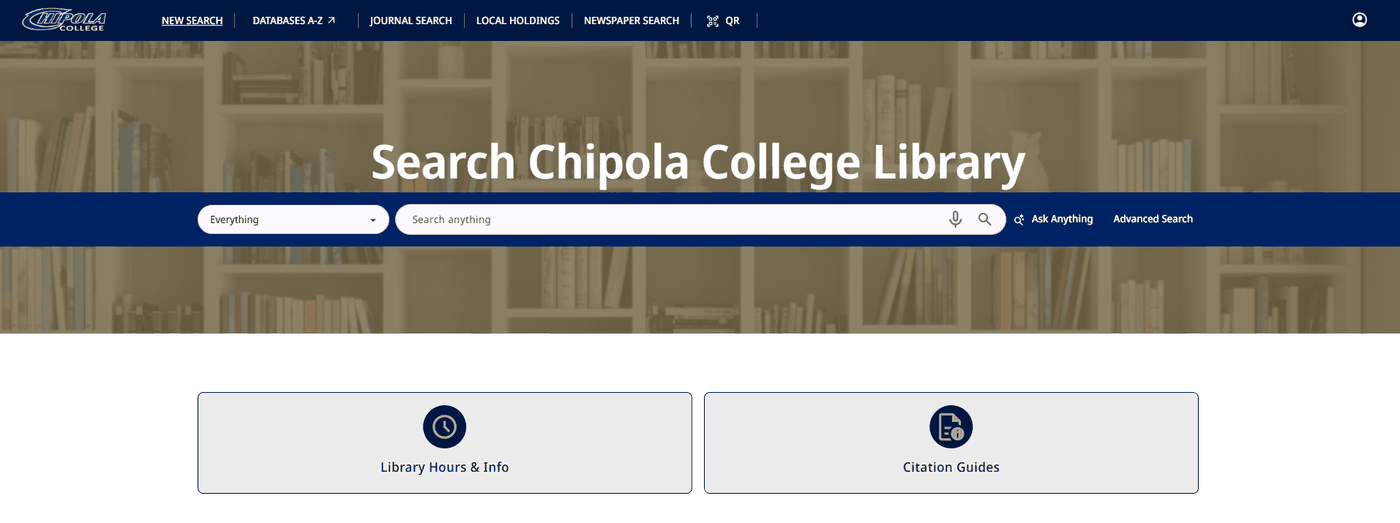
Select the Sign in link in the top right corner. If you are prompted for a sign-in method, choose SSO, then enter your Chipola College email address and password — the same ones you use for Canvas.
Running a basic search
The main page of Library Search covers both in-house materials (books, videos, periodicals) and online resources (e-books, videos, periodicals, articles, and databases).
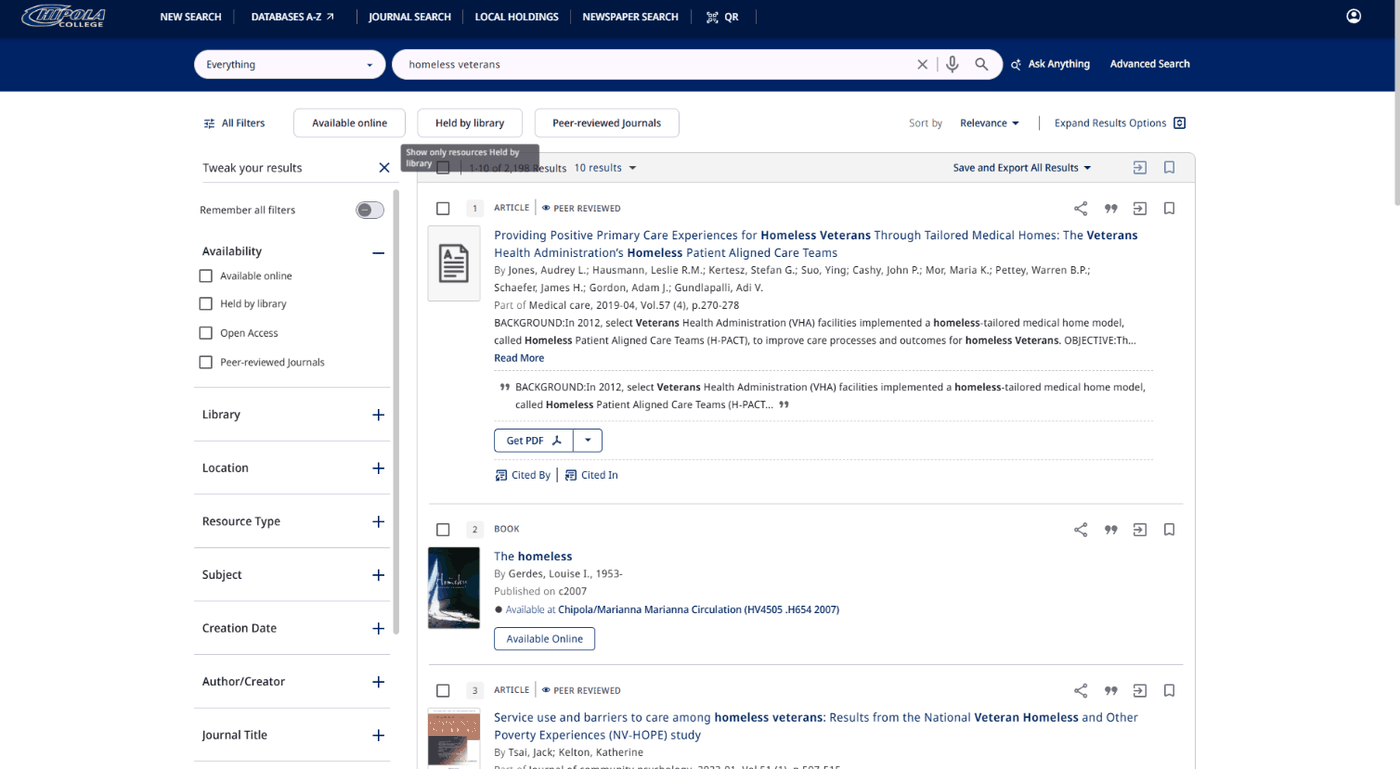
To run a basic search, type your term in the search box and press Enter or click the magnifying glass icon. For best results, be as specific as you can.
Once your results load, narrow them with the Tweak your results filters on the left. These include Availability, Library, Location, Resource Type, Subject, Creation Date, Author/Creator, Journal Title, Genre, Language, and Collection. You can also change the Sort by setting at the top right from Relevance to date, title, or author.
Basic search tips
- Use search operators —
AND,OR,NOT, and parentheses( )— to narrow your results. - To see items you can check out right now, choose Held by library or Available on shelf under the Availability filter.
- To see online resources only, choose Available online under the Availability filter.
- To limit results to one kind of material, use the Resource Type filter.
- If a search returns too few results, try a broader phrase — for example, change “Honey Bee Communication” to “Honey Bee” or “Bee Communication.”
- To search beyond the library’s own holdings, select Expand My Results to include the Central Discovery Index. Note that this returns many resources from outside Chipola College Library, and you may not have access to their full text.
A result labelled Available at with a call number — for example Chipola/Marianna Circulation (HV4505 .H654 2007) — is a physical item on the shelf. Use the call number to find it in the library.
Using Advanced Search
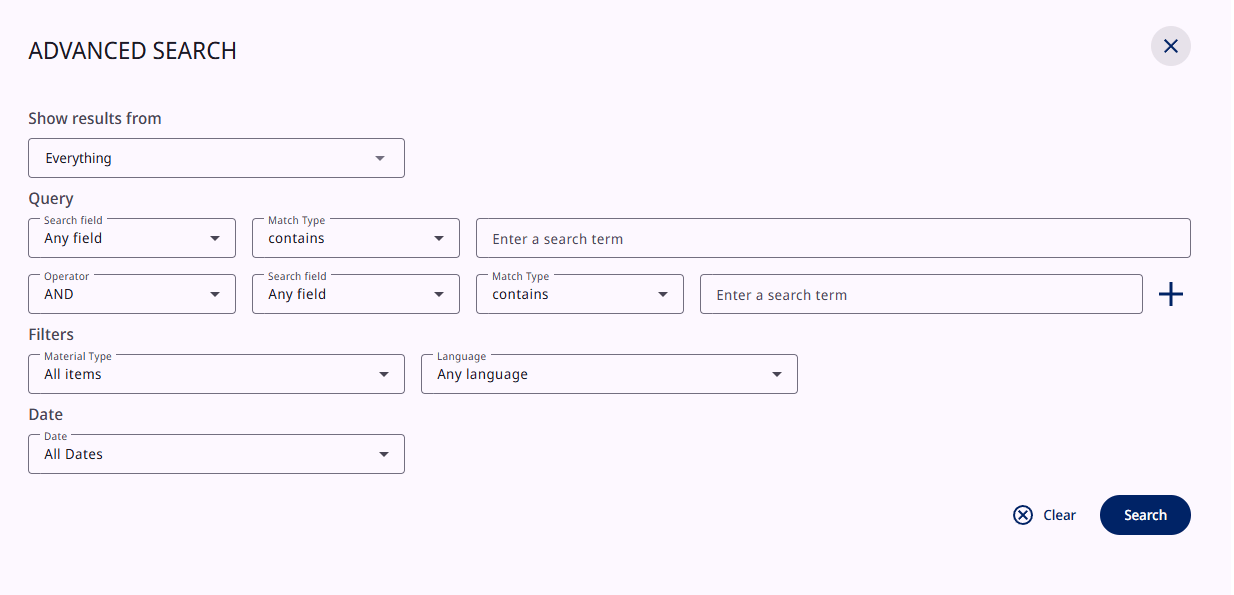
To run an advanced search, click Advanced Search to the right of the search box, choose your criteria, and enter your search terms.
Under Show results from, you can limit the search to the Library Catalog, the Statewide Catalog, or Articles. In the Query area you can add search rows and set each one to a field such as Title, Author/Creator, or Subject, joined by AND, OR, or NOT. The Filters and Date areas let you set a Material Type, Language, and date range.
When your criteria are set, select the Search button at the bottom right of the Advanced Search box.
Borrowing from other colleges and universities
The UBorrow program lets you borrow books and electronic materials from other institutions in FLVC. It is a free service for all Chipola College students and employees.
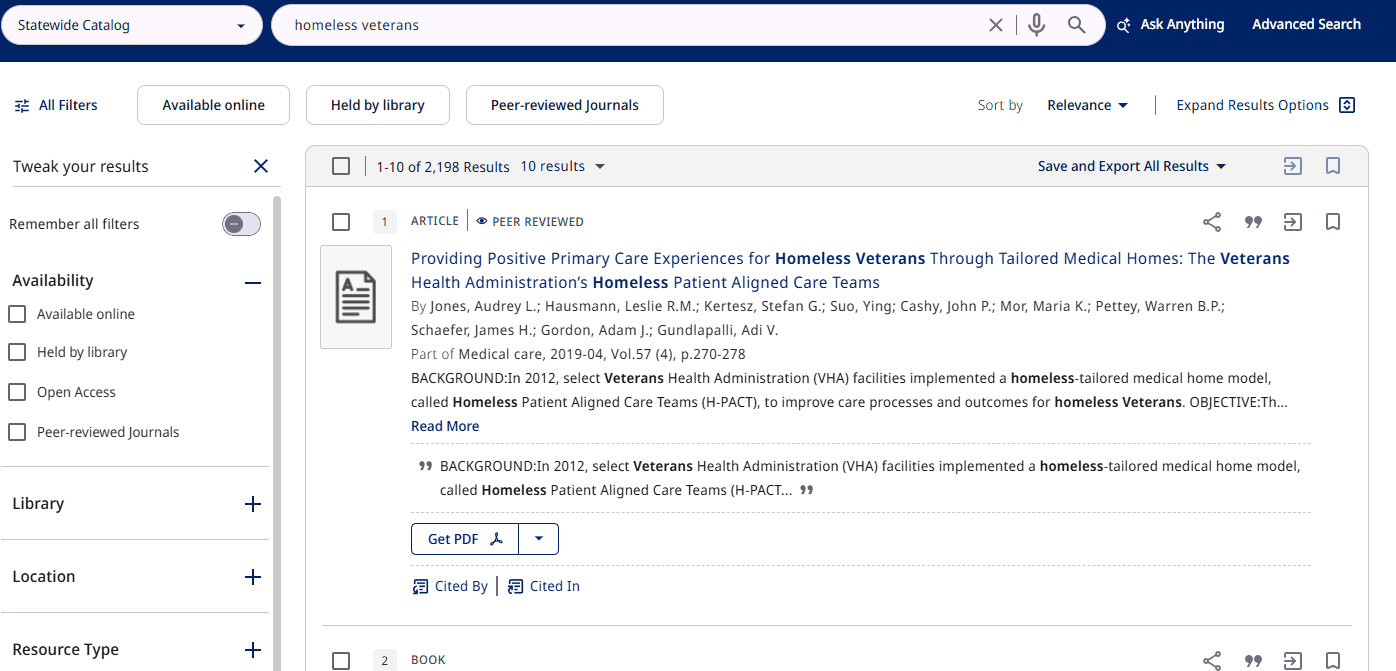
When you run a basic search, resources from other Florida colleges and universities are included automatically. To limit your search to items available through UBorrow, select Statewide Catalog from the scope menu on the left side of the search box.
Requesting an item
- Select Check for available services on the record to see its availability, including a list of the Florida colleges and universities that hold it.
- Under How to get it, click UBorrow Request.
- Confirm the details of your request and select Send Request.
It may take a week or so for the item to arrive. If you try to view a UBorrow resource while signed out, the system will prompt you to sign in first.
Databases, journals, and newspapers
The links in the top menu bar switch Library Search into a more focused search mode.
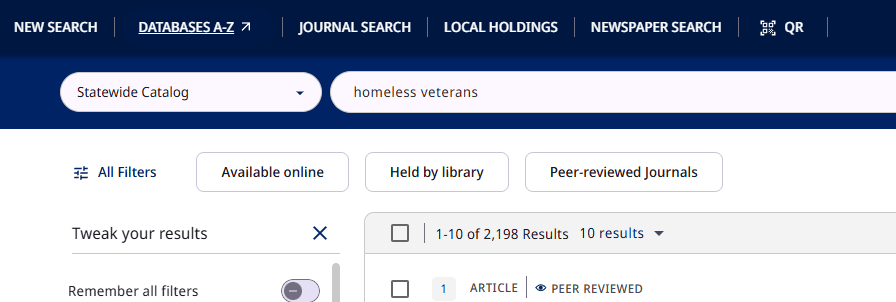
Databases A-Z
To search one specific database, select Databases A-Z. This opens a new window with an A-to-Z list of databases. You can filter the list by subject or search for a database by title. Once you have chosen a database, enter your search term or phrase in its search bar.
These databases contain academically and critically reviewed sources, suitable for essays and research papers.
Journal Search
To search for a specific journal, select Journal Search. The search screen changes to a journal search, where you can enter a journal title or an International Standard Serial Number (ISSN), or browse journals by category.
Newspaper Search
To find a newspaper article, select Newspaper Search. Enter the title of an article or terms related to a news item, then press Enter or click the magnifying glass icon.
Asking a librarian for help
If you are off campus and need to ask a question, select the Contact Chipola College library staff link on the Library Search page.
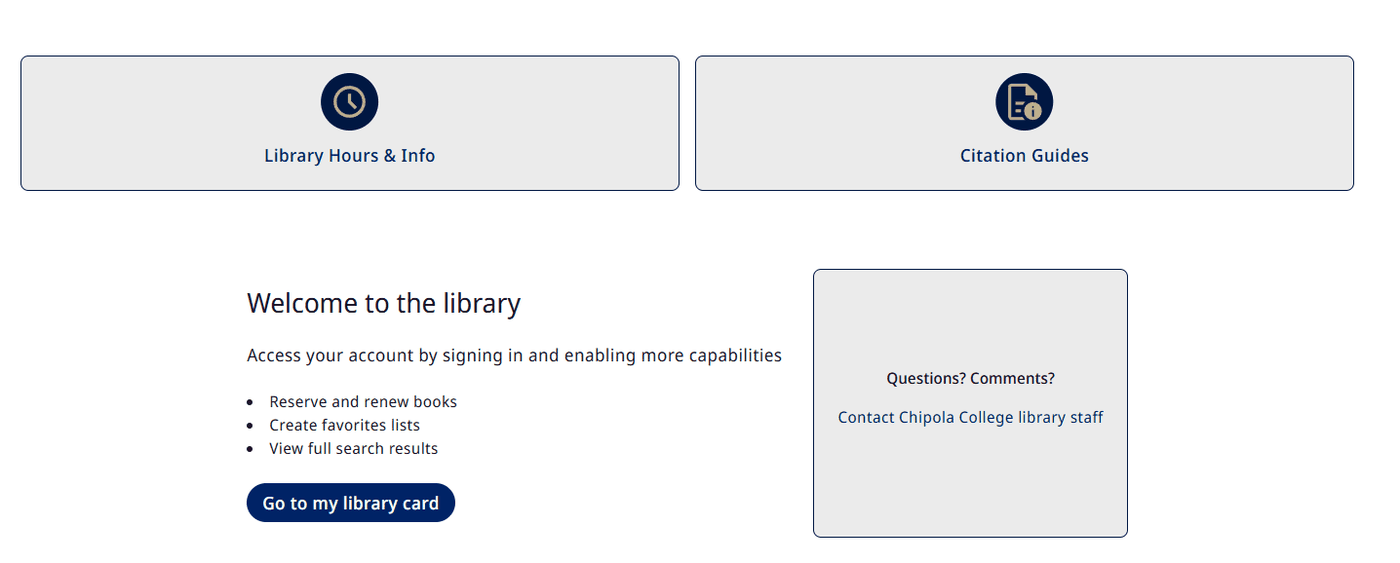
With your library card you can create favorites lists and view full search results.
Frequently asked questions
How can I get to the Chipola Library databases?
Open any course in Canvas. In the course navigation links on the left, find Library Resources. That link takes you straight to the Chipola College databases.
How do I get to the databases themselves?
Use the Databases A-Z tab in the top menu bar. You can pick a topic from the drop-down list, or scroll the alphabetical list of research sites. These sites hold academically and critically reviewed sources suitable for essays and research papers. Remember to check MLA formatting (or the style your instructor requires) when citing sources for work you submit.
Can I get my course textbooks through the databases?
Usually not — textbooks for Chipola courses are normally purchased at the Chipola College bookstore. Ask your instructor if you are unsure.
What can I find in the databases?
Research papers, articles, and books, among other literature materials. These resources are free to use — just remember to cite any sources when necessary.
Chipola College Library is a member of the Florida Virtual Campus (FLVC). Library Search covers the collections of Florida’s 40 public state college and university libraries. Questions about this guide, or about a search that isn’t working? Contact Chipola College library staff.